
Track your requests
There are three places in the Dashboard tab to follow what happened to a request, plus the card the bot sends you in chat.
Latest Requests
Section titled “Latest Requests”On the Overview page, Latest Requests shows your own requests from the last month, for Entra roles, groups and Azure resources together, newest first.
- It shows 10 at a time. Select Load more to see older ones.
- It refreshes by itself every 30 seconds. Select the refresh icon to update it now.
- If you have no requests, it shows “No requests.”
Each card shows:
| Label | Meaning |
|---|---|
| “Created At:” | When you made the request. |
| “Justification:” | The reason you gave. |
| “Duration:” | How long you asked for. |
| “Activation:” | Whether the role needs approval, and who the approvers are. |
| “Reviewed By:” | Who approved or denied it, or “Not Reviewed”. |
The progress bar
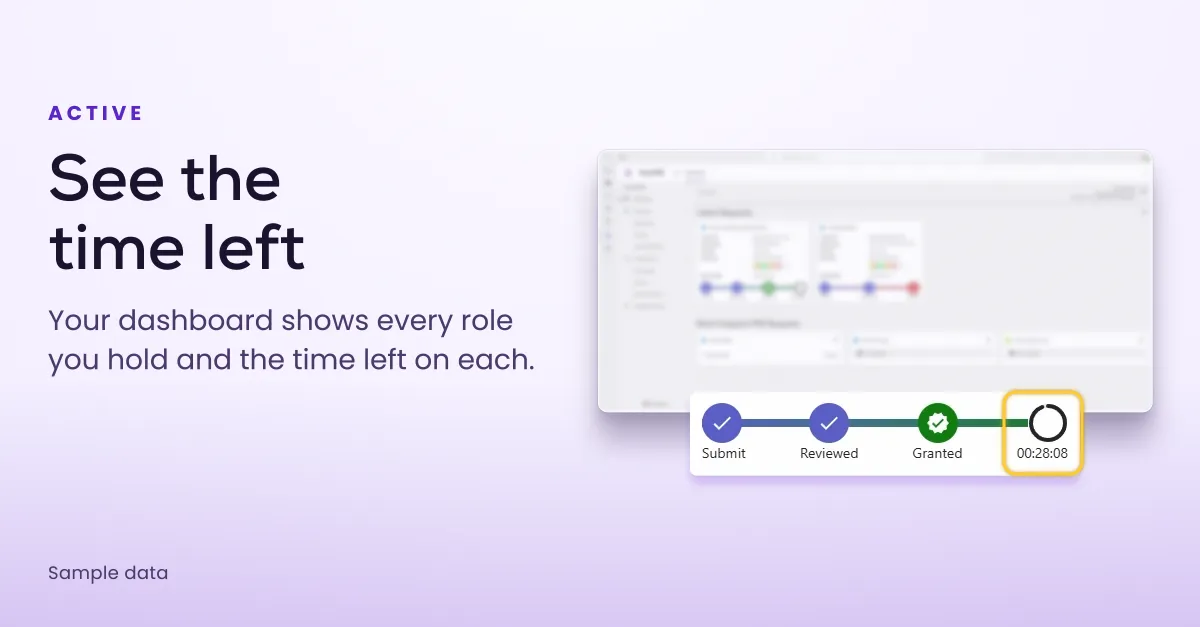
Section titled “The progress bar”Along the bottom of each card, a progress bar shows where the request is:
Submit → Pending Approval → Granted, Denied or Revoked
The middle step changes to Reviewed once someone has approved or denied the request. It shows Canceled if you cancelled the request, or Timed out if nobody decided in time. See Request statuses for every state.
The countdown
Section titled “The countdown”When a request is granted, a ring next to Granted counts down the time the role has left, as hours, minutes and seconds. It shows “Not Started” if you chose a start time in the future, and “Expired” once the activation has ended.
My Requests
Section titled “My Requests”My Requests has your full request history for the last month, one page per type: Entra Roles, Groups and Azure Resources.
Search by role name, action or justification. Each card shows the scope, justification, a Status badge, the duration, who acted and when the request was created.
While a request is Pending Approval, its card has a Cancel button. See Deactivate or cancel.
Active Assignments
Section titled “Active Assignments”To see the roles you have right now, go to My Roles, choose a type and select Active Assignments. Three views help you sort them:
- All
- Time-bound Activation — activations that end at a set time.
- Permanent Activation — active assignments with no end date.
Each card shows the assignment’s State. This is also where you deactivate a role before it ends.
A newly activated role can take a few seconds to appear. Select the refresh icon if it is not there yet.
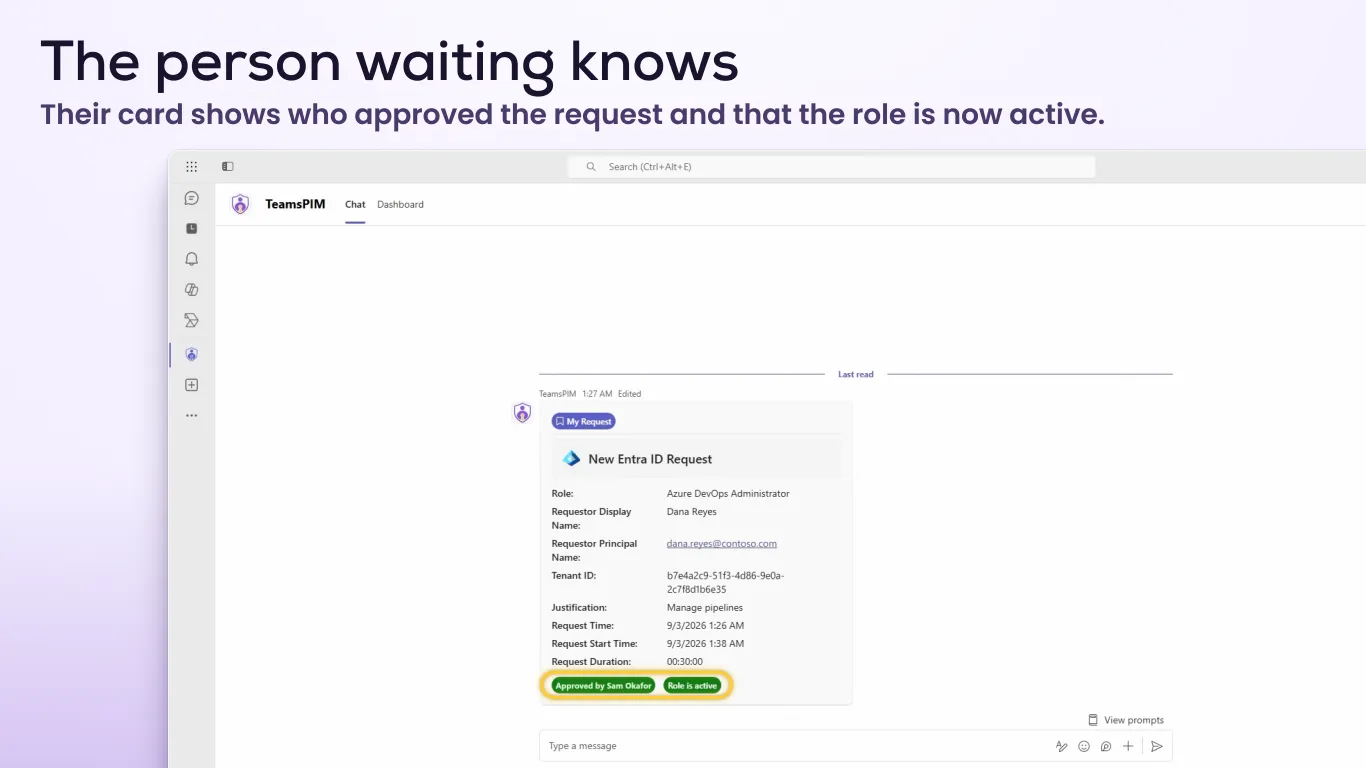
In chat
Section titled “In chat”If your request needs approval, the bot sends you a card marked “My Request” showing “Pending Approval”. When an approver decides, the card updates to “Approved by” with their name and “Role is active”, or “Denied by” with their name. You also get a Teams activity feed notification. See Notifications.