
Your policies, enforced
Every activation runs through Microsoft Entra PIM, with the same maximum durations, approvers, MFA, ticketing and Conditional Access requirements.
Request, approve and track just-in-time privileged access where your team already works. No more portal hopping or buried approval emails.
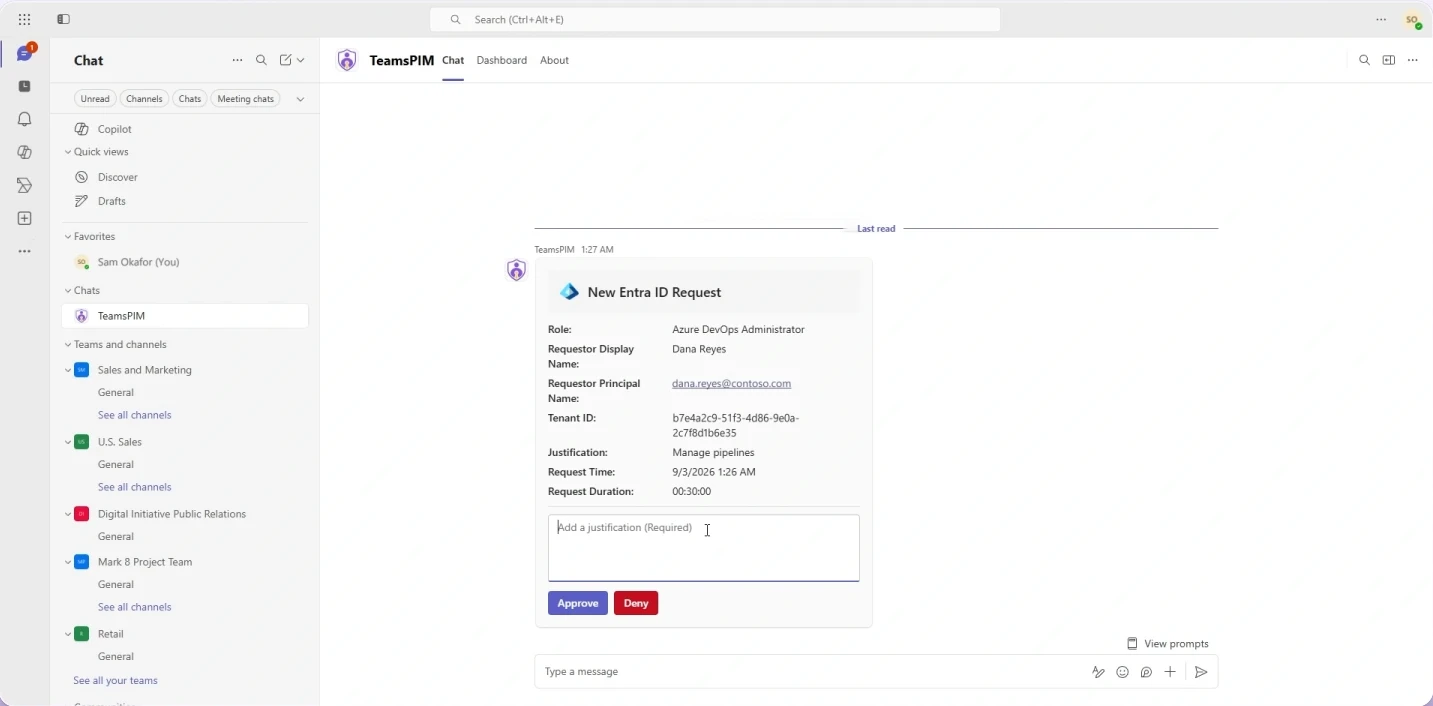
Microsoft Entra PIM keeps standing admin access out of your tenant. But activating a role means a trip to the Azure portal, and approving one starts with an email. TeamsPIM moves both into Teams.


TeamsPIM doesn't replace PIM or copy your role data. It works through Microsoft Graph and Azure Resource Manager, so your existing PIM settings stay in charge.
Every activation runs through Microsoft Entra PIM, with the same maximum durations, approvers, MFA, ticketing and Conditional Access requirements.
People request and approve with their own Microsoft account, so PIM records exactly who asked, who decided and why.
Roles stay active only for the hours requested, with a countdown and a reminder five minutes before access ends.

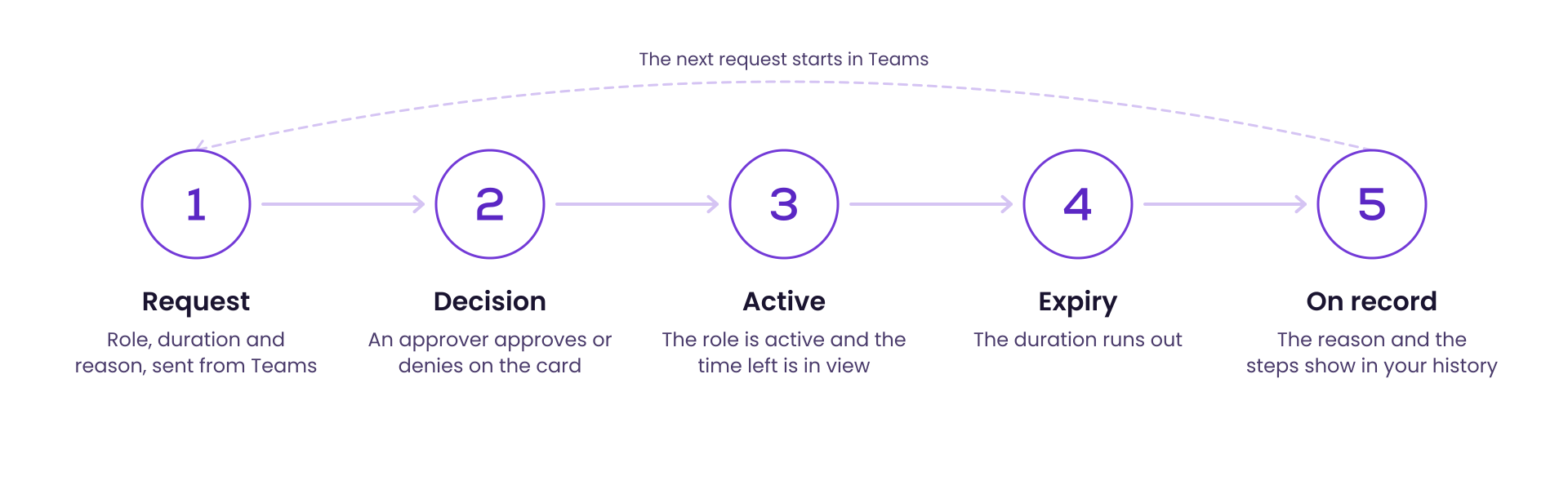
Pick an eligible role in the Dashboard tab, set the duration, add your reason and select Activate.
Approvers named in the role’s PIM settings get a card in their TeamsPIM chat and select Approve or Deny.
The role is active and the time left is in view on the dashboard, with a reminder five minutes before it ends.
The reason and each step show in your request history.
Built for the people who request and approve privileged access, not just the people who configure it.
Activate Microsoft Entra directory roles, PIM for Groups membership or ownership, and Azure roles on subscriptions and resource groups.
Most Frequent PIM Requests lists the roles you activate most, each with its own Activate button.
Approvers review the role, requestor, reason and duration on an adaptive card, and every approver’s card shows who decided.
Approvals, denials and expiry warnings arrive in the Teams activity feed, so nobody has to watch their inbox.
My Requests keeps a month of history, and admins with a reporting role get PIM reports on assignments and activations.
Works in Teams on desktop, web and mobile, and follows your light, dark or high-contrast theme.
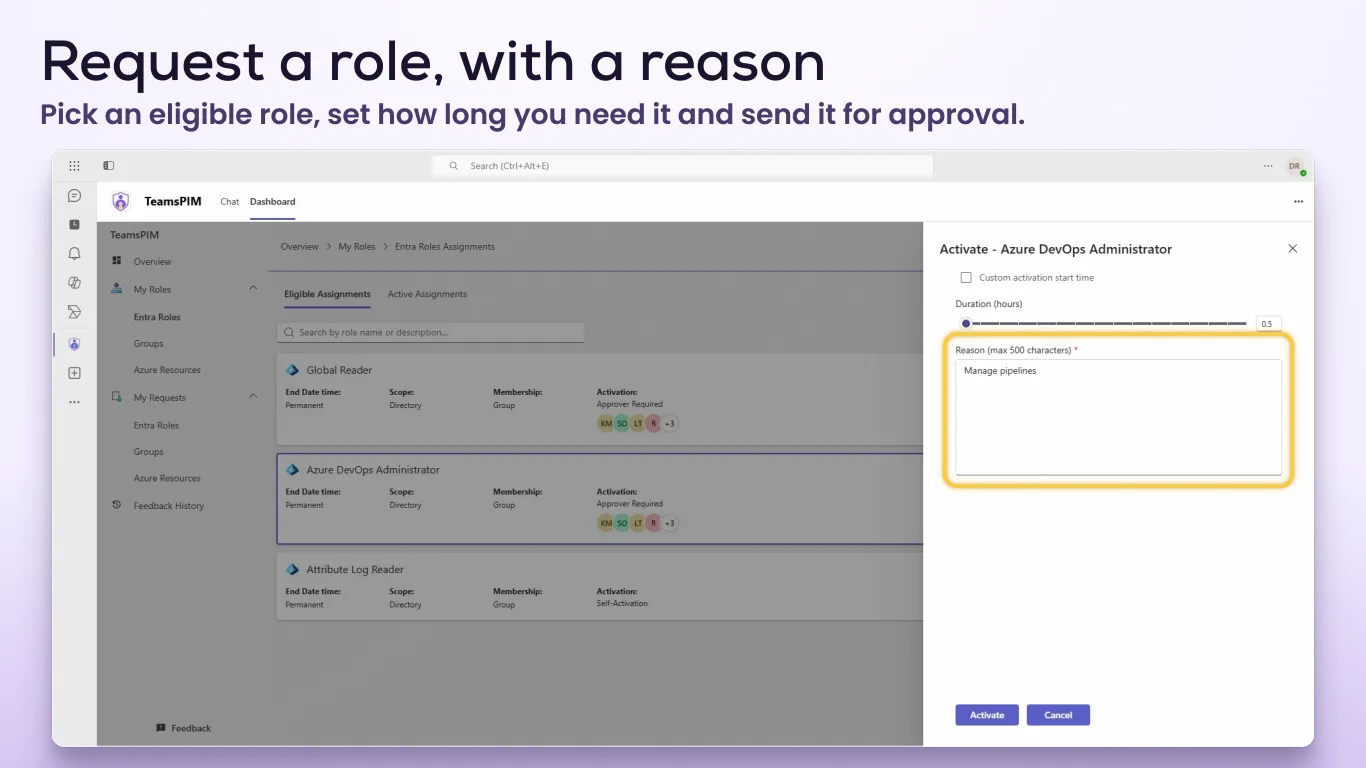
Your eligible roles, groups and Azure resources are listed under My Roles. TeamsPIM reads each role’s PIM settings, so you see up front whether it needs approval, MFA or a ticket number, and how long you can ask for.
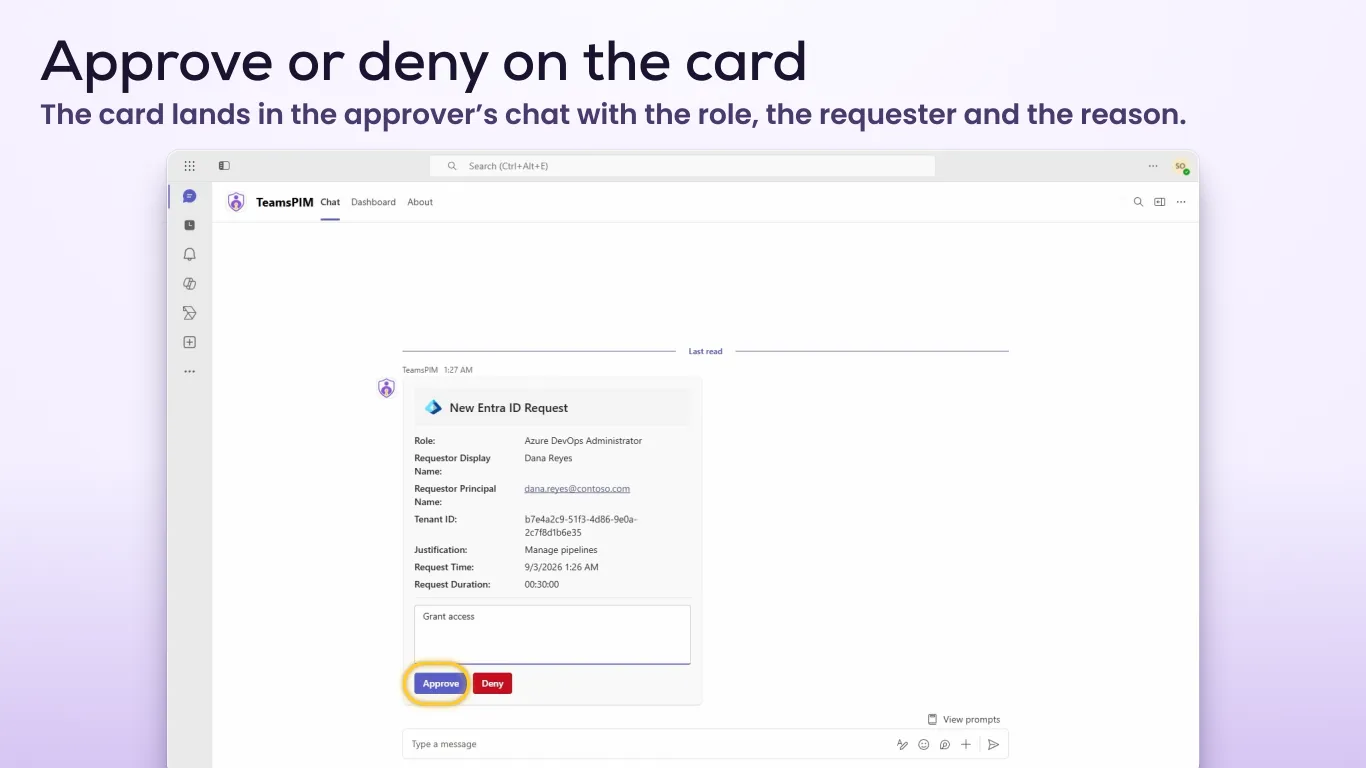
Approvers get a card with everything they need to decide: the role, who asked, their reason and how long for. A justification is required, and the decision is made with the approver’s own identity.

Set up TeamsPIM for your organisation in a few steps, then let people request and approve access where they already work.